
If you need to adjust your prep stations on your kitchen display screen (KDS), please follow the steps below.
On a Non-Expediter KDS
- On your device, select the three dots in the upper right-hand corner of your KDS screen and select Device Setup.
- Select the Prep Stations setting under the Kitchen Setup section.
- Select the prep stations you'd like to appear on this KDS device, and leave the prep stations you'd like hidden deselected. You may need to scroll to the side to see all available prep stations set up for your restaurant. In this example, we don't want Drinks or No Station items to appear on our KDS screen, so we've left those deselected.
- Select Save.
- Select the back arrow to return to your KDS screen.
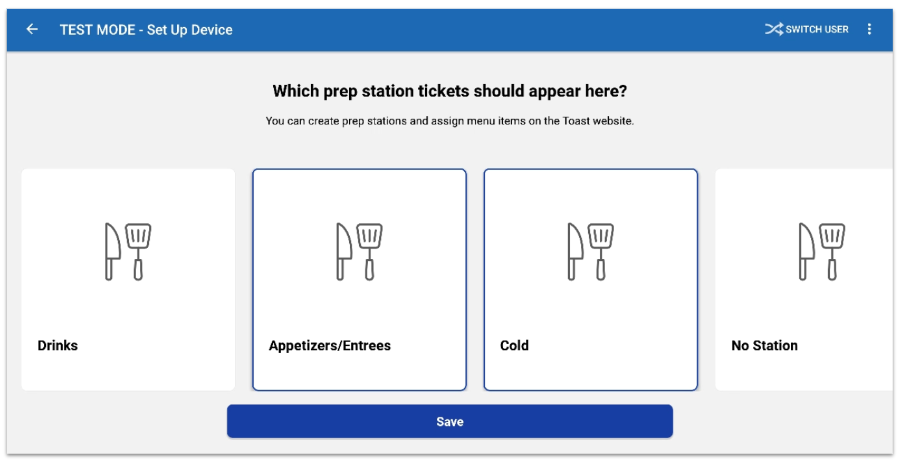
Note: You can assign multiple prep stations to a KDS if there are more prep stations than screens at your store. To do this, simply check the boxes for all the prep stations you want to display and combine on this KDS device during step 3.
Expediter KDS
- On your device, select the three dots in the upper right-hand corner of your KDS screen and select Device Setup.
- Select the Kitchen Expediter setting under the Kitchen Setup section.
- Select Expediter.
- Select Save.
If you run into any issues, please submit an IT ticket and someone from our team will gladly assist. For more detailed instructions on submitting an IT ticket, please click here.